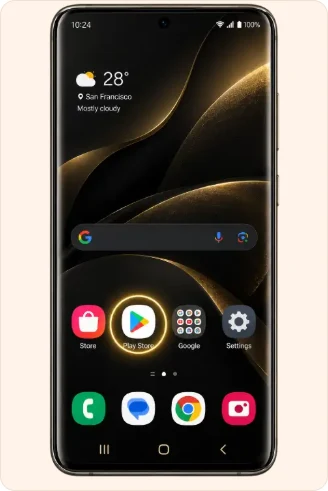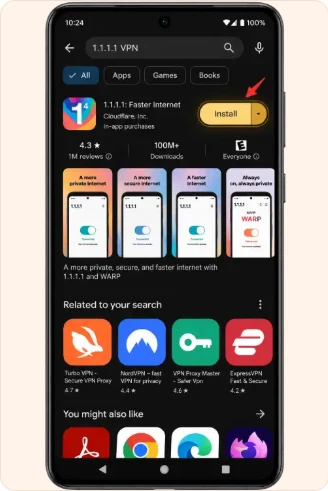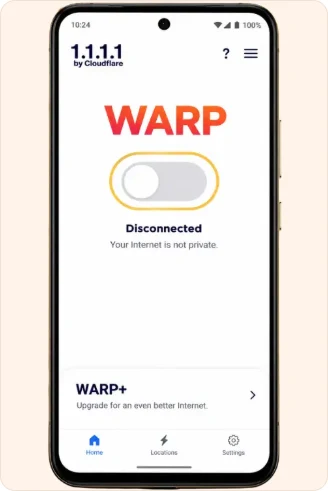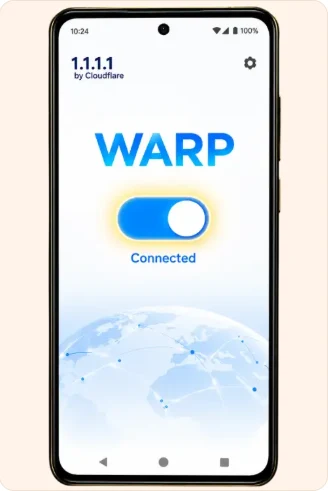

Match the walkthrough to the phone in your hand
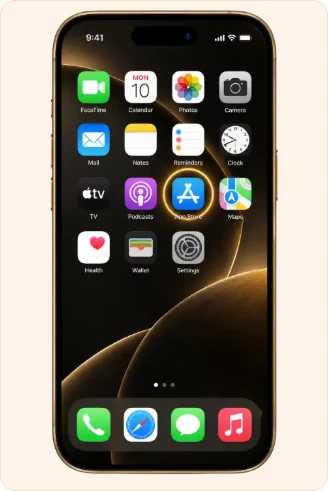
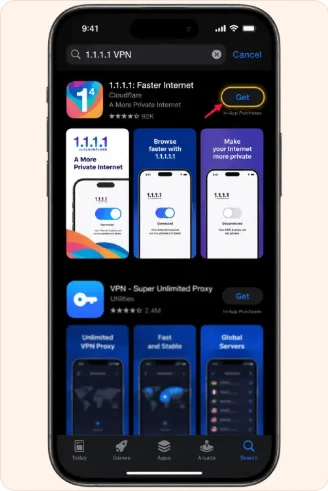
Use the Android sequence for a phone running Android and the iPhone sequence for iOS. The illustrations below show a connection application and its device prompts. Begin with the store listing in the first part of your sequence and compare the application name and developer before moving on. A similar-looking icon in a search result does not establish that you have opened the same listing.
Read a connection request in context
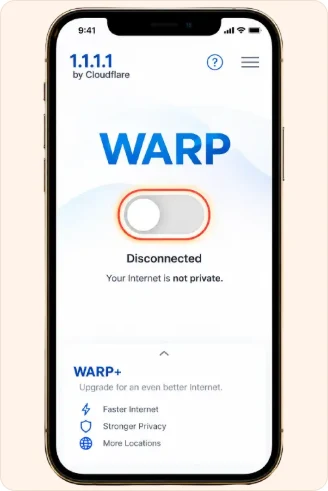
An operating-system prompt can appear above the application that requested it. Read both names on the screen and consider whether you intended to set up a connection profile. You can leave the prompt and return to the instructions if you are unsure. On a work or shared phone, check who manages its connection settings before changing an existing configuration.
Compare one browser visit at a time
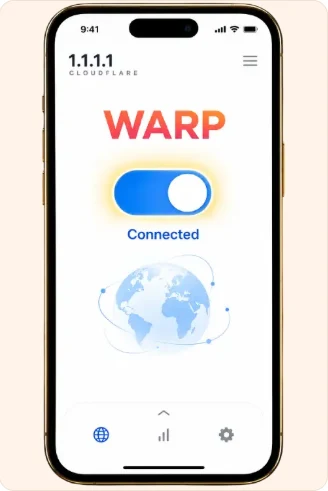
Before changing a setting, note the address that failed to open and whether another familiar page loads. After checking the connection indicator, reopen the same address in the same browser. Keeping the page and browser constant makes it easier to tell what changed. A transfer that paused before a connection change may still need attention in the browser’s download list.
If a picture differs from your screen
Use the purpose of the pictured step to orient yourself: finding the listing, reviewing its details, reading a permission request or checking the resulting status. Labels and screen layouts can vary between device versions. If a prompt describes a different application or a different change, stop and read it in full. When seeking help, give the device type and step number so the reader knows which picture you followed.
iPhone connection walkthrough
Android connection walkthrough